
How to Set Up Your Organisation Profile
Your Funding Profile is the foundation of your Fundsorter experience. It helps our system understand your organisation's mission, work and funding needs. Fundsorter uses this to match you with the most relevant funding opportunities.
Setting Up Your Profile
Click on 'Manage Organisation' in the navigation bar. Here you will find tabs for Organisation Details, Supporting Documents, and Funding Profile.
Step 1: Add organisation details
Start by adding your organisation’s name and Charities Number. Our system will use this to pre-populate your organisation's basic description directly from the Charities Register. If your organisation is not a charity, please enter 'NONE'. This applies to community organisations such as Incorporated Societies and Charitable Trust Boards.
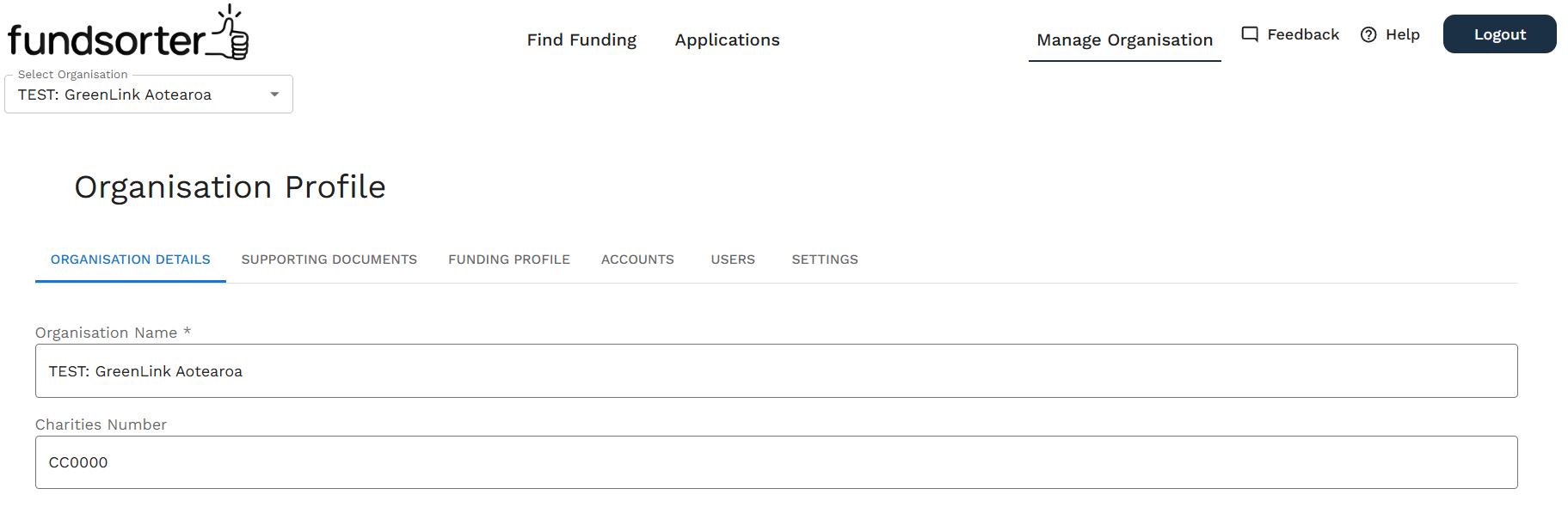
You will then need to add:
Location(s) you serve
Locations are the first thing we filter on. We only show you opportunities available in the places you've selected, so this setting decides which funding you're eligible to see at all.
- Select the region(s) where your organisation works. Each region includes every district inside it by default.
- To remove a district that doesn't apply, untick it. To narrow a district down to specific suburbs, click Refine, then untick the areas that don't apply. Use Select all or Clear all if every area in the list applies, or none do. Click Collapse once you've finished reviewing the list.
- Some locations are grouped because they are commonly used areas made up of multiple places. For example, Auckland is shown as area groups such as Central Auckland, North Shore, West Auckland, East Auckland, South Auckland, Rodney, Franklin (Auckland), Hibiscus Coast, and Hauraki Gulf Islands. Select the group that applies, then refine it if only part of that area applies to you.
- If a location shows a Refined tag, only some of the areas inside it are selected.
- Use the most specific location that fits. If you only work in one city, select that city rather than the whole region, you'll still be matched with wider district, regional, and national opportunities that include it.
- If you're specifically seeking operational, salary, or community-focused funding, refine down to your own suburb or city, even if your organisation's broader work extends further. This focuses your matches on opportunities intended for that specific community.
- We changed how region selection works in July 2026, so if you set your locations up before then it's worth checking they still cover everywhere you work. See Locations.
Funding filters
Organisations can choose to include funding opportunities from international funders or gambling proceeds.
You can also select 'Potentially eligible for iwi funding'. Select this option if your organisation may be eligible for grants available only to members of specific iwi, then enter one or more iwi that your group is associated with. Opportunities with explicit iwi eligibility requirements will only appear in matches for organisations that self-identify with that iwi using this setting.
Note: There are many Māori-related funding opportunities where eligibility is not based on specific iwi membership; Māori groups who leave this box unticked can still match with those.
Use these filters to help the system find the right funding opportunities for you.
A short description of your organisation’s work
Provide a high-level overview of your organisation. Cover topics such as the type of work it does, and the impact of your work. Organisations often have this information available on the 'About' page of their website.
Tip: Speech-to-text is available! In the Organisation Description field and other long-text areas, you will see a microphone icon.
- How it works: Click the microphone to record your input instead of typing. Your recording will be transcribed to fill in the field for you.
- Best practices: For best results, speak clearly and close to your microphone. Recording will automatically stop after 5 minutes.
Application information
Use these fields to add key contact details for your organisation. Fundsorter uses this to populate answers in the grant applications it drafts.
Step 2: Upload resources
Next, navigate to the Supporting Documents tab to upload resources that provide a broad overview of your organisation, work, and impact. Use documents that are already available and don’t include any sensitive information.
Examples include
- Strategy documents
- Annual reports
- Previous funding applications
- Research reports

Website
Add your website URL and our tool will scan up to 10 pages of context. You can add URLs for other relevant pages of your website to ensure the system scans them too. Ensure you click the 'Upload website content' button after entering the URL(s).
Other web-based resources
Some websites block access to scraping tools. For media articles, blog posts, and social media content, please upload them as PDFs. To do this, print or save the page as a PDF, then upload to Fundsorter using the Upload Files function.
If an upload doesn't work, we'll tell you why — for example, if a file is over the size limit we'll show you how big it is.
Step 3: Generate and review
- Navigate to the Funding Profile tab. Click the "Generate Profile" button and our tool will create a comprehensive profile based on your details and documents.
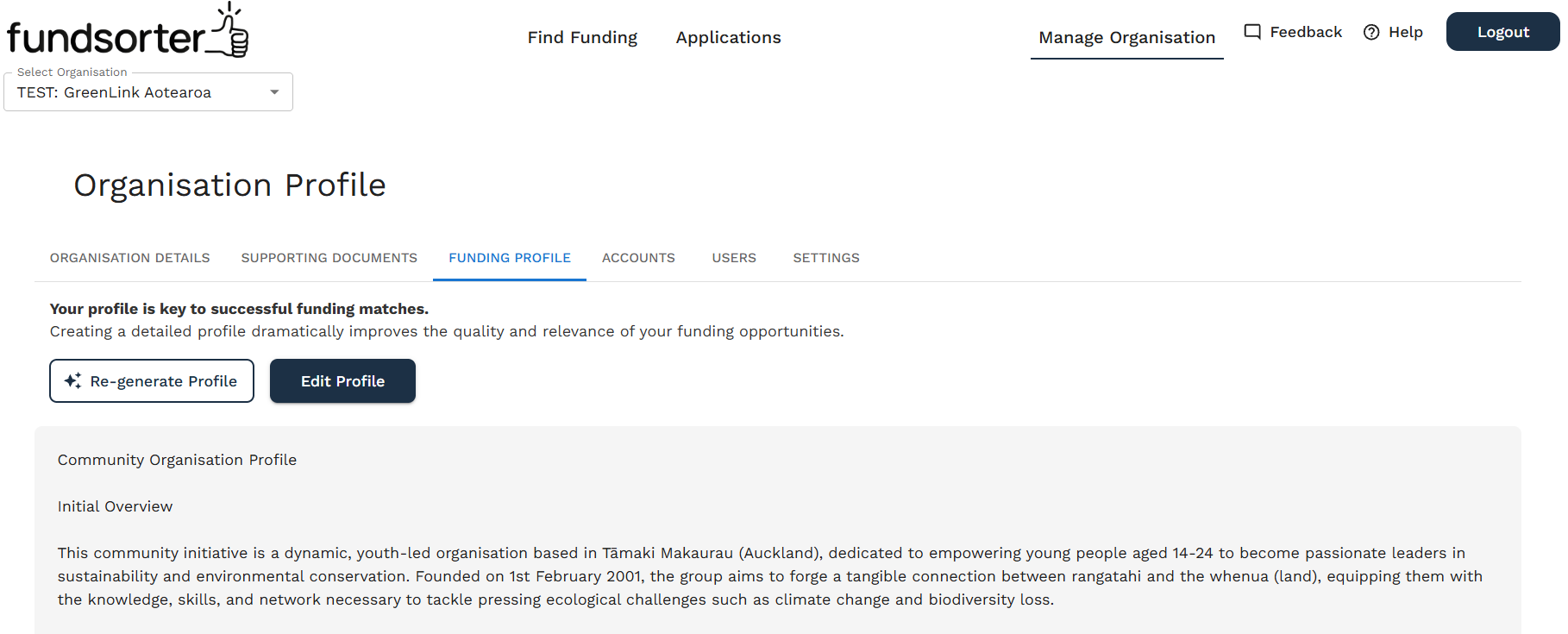
- Review all sections of your Funding Profile carefully.
- If required, make adjustments to the profile so it better represents your organisation. To do this, either:
- Edit the profile text directly — the box is always editable. Click 'Save' when you've made changes.
- Add more Supporting Documents. Your profile updates itself automatically whenever you add a document or website, or edit your organisation description, so there's no separate re-generate step to run. You'll see an "Updating your profile…" message while it runs.
- For more on how automatic updates work, and how to browse or restore earlier versions of your profile, see Keeping Your Organisation Profile Up to Date.
Tips for an effective profile
Be comprehensive
The more information you provide, the better our matching algorithms can work for you. Describe the impact you have had. Describe the impact you plan to make, and the intended demographic. This should include previous or planned projects and those that benefit.
Keep it updated
As new information becomes relevant, add it into your organisation's description. You can add and delete documents anytime. Your profile updates automatically.
Highlight your unique approach
What makes your organisation special? Be sure this comes through in your profile.