
How to Apply and Remove Discount Codes
How to Apply and Remove Discount Codes
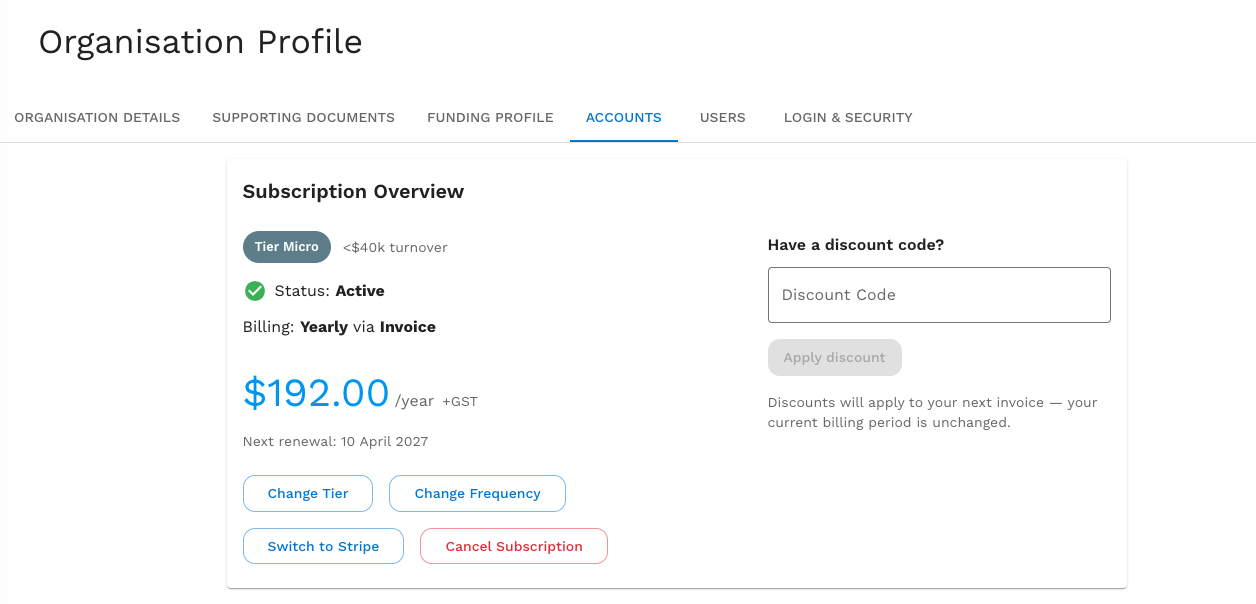
If your subscription is paid by invoice, you can apply and remove discount codes directly from your Accounts page at any time. Any change you make affects your next invoice — your current billing period is unchanged.
This guide explains how to apply a discount, see its effect on your next invoice, and remove a discount when you no longer need it, or want to apply a new one.
Applying a Discount Code
- Click Manage Organisation in the main navigation, then click the Accounts tab.
- Find the Have a discount code? section on the right of your Subscription Overview.
- Enter your code in the Discount Code field. As you type, Fundsorter checks the code and previews what your next invoice will look like.
- Click Apply discount to save the discount to your subscription.
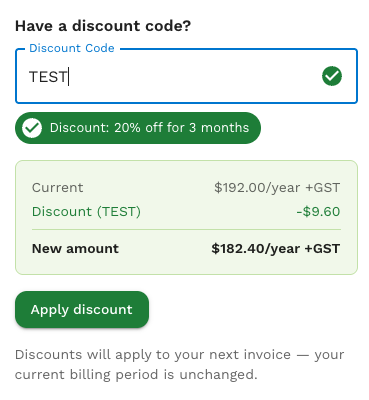
Once a valid code is entered:
- A green tick will appear alongside a discount description. Example; "20% off for 3 months".
- You'll see a preview panel showing your Current, Discounted, and New invoice amounts.
- The Apply discount button will activate.
If the code isn't recognised, double-check it with whoever sent it to you, or email us at [email protected].
Viewing Your Active Discount
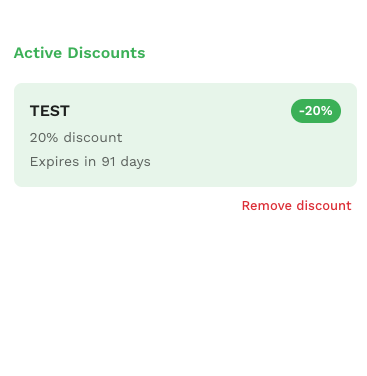
After you apply a discount, the Have a discount code? section is replaced by an Active Discounts panel. This panel shows:
- The discount code.
- The discount amount (for example, "20% discount").
- When the discount expires (for example, "Expires in 91 days").
- A Remove discount link.
Your Subscription Overview also updates — the headline price now reflects the discounted amount that will appear on your next invoice.
Removing a Discount
- Click Manage Organisation in the main navigation, then click the Accounts tab.
- In the Active Discounts panel, click Remove discount.
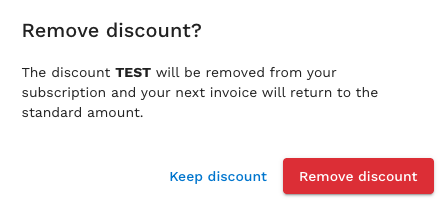
- A confirmation dialog appears. Click Remove discount to confirm — your next invoice will return to the standard amount. If you change your mind, click Keep discount instead and your discount stays in place.
Things to Know
- Discount codes are managed from the Accounts tab for subscriptions paid by invoice. If you pay by credit card and have a discount code, please email us at [email protected].
- Discounts apply to your next invoice. We don't retroactively adjust the invoice for your current billing period.
- If you have any questions about your discount code, please email [email protected].