
Drafting Introduction Letters for Relational Opportunities
Some funders don't take open applications. They only respond to an introduction letter — a short, personal message explaining who you are and why you might be a fit. Fundsorter identifies these as Relational Opportunities in your match results and drafts the first version of the letter for you, using your organisation's profile and any saved notes. You review it, tidy the wording, then send it through your own email.
How it works
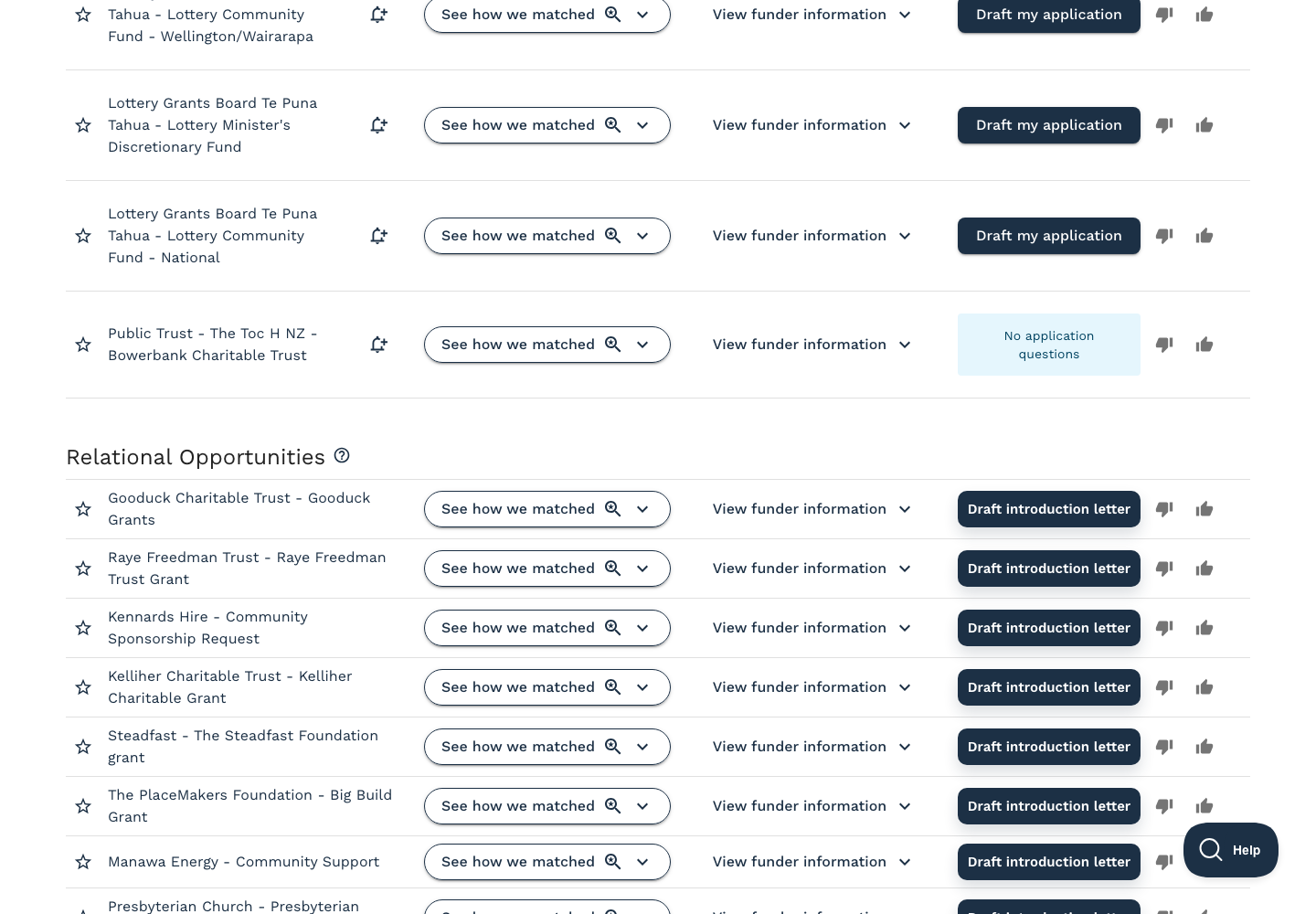
Step 1: Find the Relational Opportunities section
Open a completed scan from Find Funding → Funding Requests → View results for the request you want to work on. Scroll past the Open now and Open in the next 3 Months sections. Your relational matches appear under Relational Opportunities.
Every match in this section has a Draft introduction letter button instead of the usual Draft my application button — relational funders don't have an application form to fill in.
Step 2: Open the Draft introduction letter workflow
Click Draft introduction letter on the funder you want to contact.
A window opens and Fundsorter starts drafting. You'll see an info bar that says Drafting your introduction letter... while this runs. The draft usually takes 15–30 seconds.
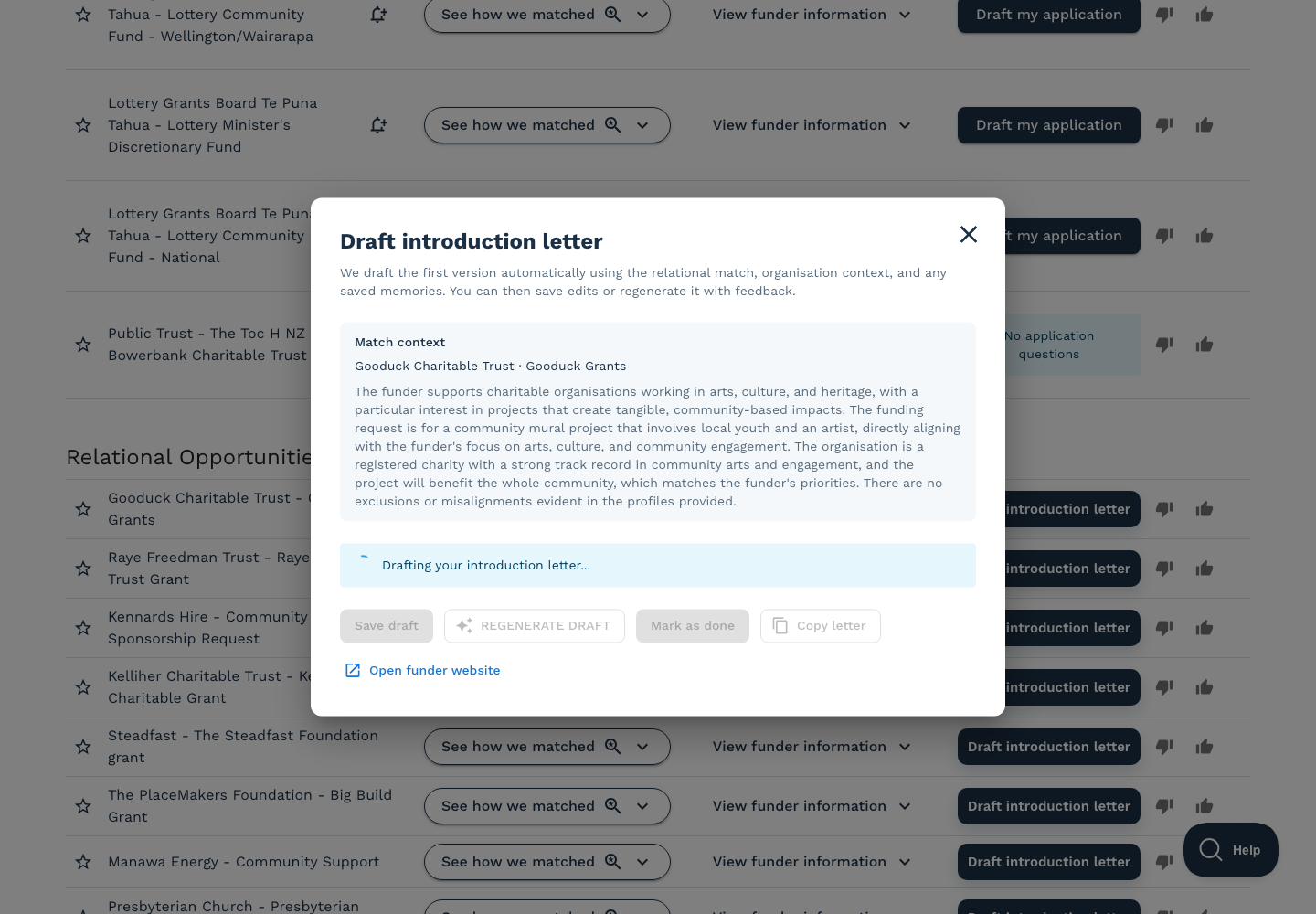
At the top of the window you'll see:
- Match context — the funder and, if relevant, the specific fund, plus a short summary of why we thought this was a match.
- Any helpful context we've picked up about how to approach this funder (e.g. "applications are accepted by invitation only").
Step 3: Review the draft
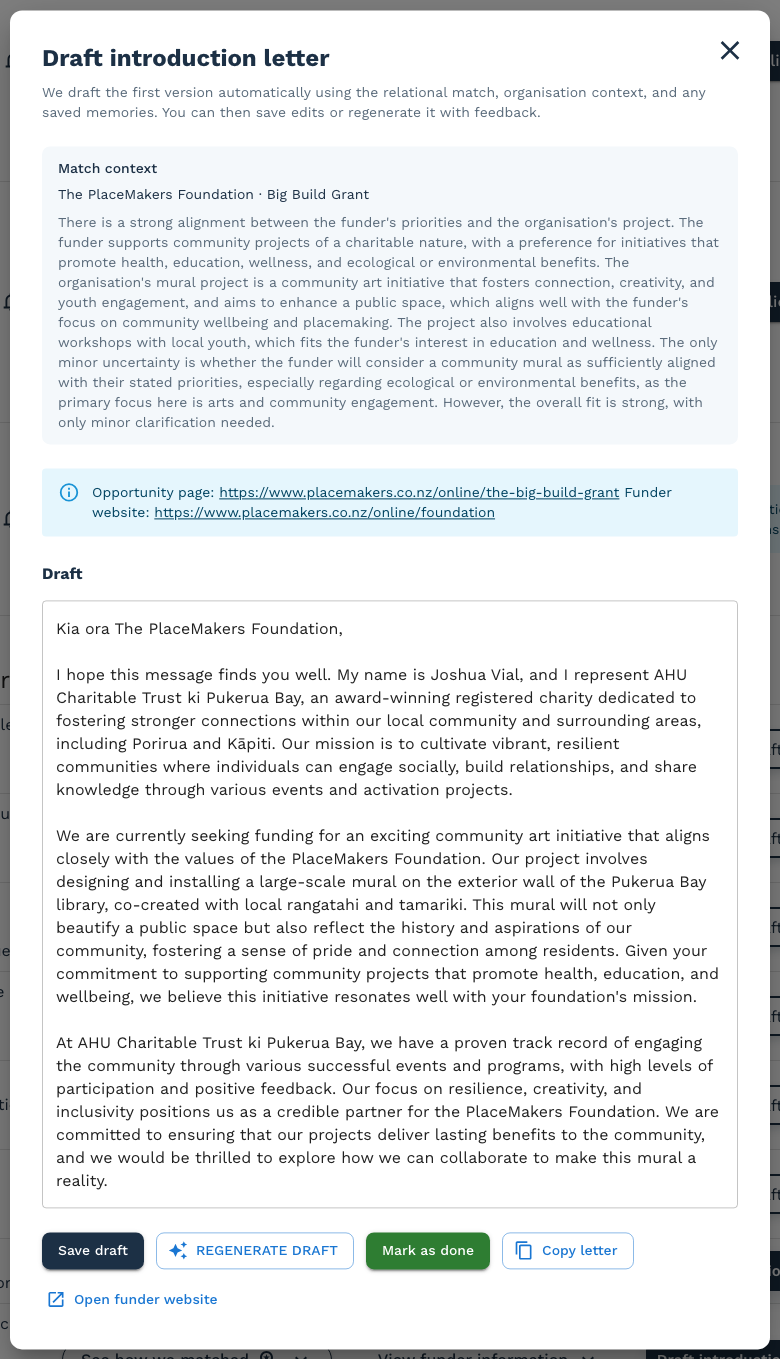
Once the draft is ready, it appears in an editable text box. Read it end to end before doing anything else. Fundsorter uses:
- Your organisation's funding profile.
- Details of your current funding request.
- Any organisational memories you've saved.
That's enough to produce a reasonable first draft, but a funder relationship is personal — you should always read it carefully and make it sound like you.
Step 4: Edit, regenerate, or save
You can edit the letter directly in the text box. The action buttons below let you:
- Save draft — keeps your current version. The next time you open this match, your saved draft is what you'll see. Only enabled once you've made changes.
- Regenerate draft — asks Fundsorter to redraft with feedback you provide (e.g. "shorter, warmer tone, mention our work with youth"). Each regenerate counts against your plan's usage limit.
- Copy letter — copies the text to your clipboard so you can paste it into your email client.
- Open funder website — opens the funder's website in a new tab if you want to double-check contact details before sending.
Step 5: Send the letter, then mark as done
Fundsorter doesn't send the email for you. Paste the letter into your email (or your fundraising CRM), personalise anything that still needs a human touch, then send.
Once you've sent it, come back to the same match and click Mark as done. This tells Fundsorter you've followed up with this funder so it stops showing in your list of things to action.
Good to know
Usage limits and free trial
Drafting and regenerating letters uses your plan's introduction-letter allowance. If you run out, you'll see an upgrade prompt inside the window instead of a draft — pick a paid plan to keep drafting.
Saved memories
If the draft used memories you've saved about your organisation (e.g. past successful projects, values statements, contact pathways), you'll see a small info note: This draft included relevant organisational memories. Keeping your memories up to date makes every draft better.
Read-only accounts
If your Fundsorter account is in read-only mode (for example, after a payment lapse), generating, saving, regenerating, and marking as done are disabled. You can still read existing drafts.
During onboarding
The Draft introduction letter button is visible in onboarding match results but is disabled with the message Not available during onboarding. Finish onboarding first, then return to your match results to draft your first letter.