
Application Tracking
The Applications page is a central hub for tracking your organisation's grants funding. It's a powerful dashboard designed to move you from 'drafting' to 'funded' by letting you see, manage, and track your progress in one place. You can access it at any time by clicking "Applications" in the main navigation menu.
Step 1: The Applications dashboard
The main dashboard provides a high-level view of your organisation's grant funding progress. There's a row for each funding request, providing immediate insight into how you're tracking against your funding goals.
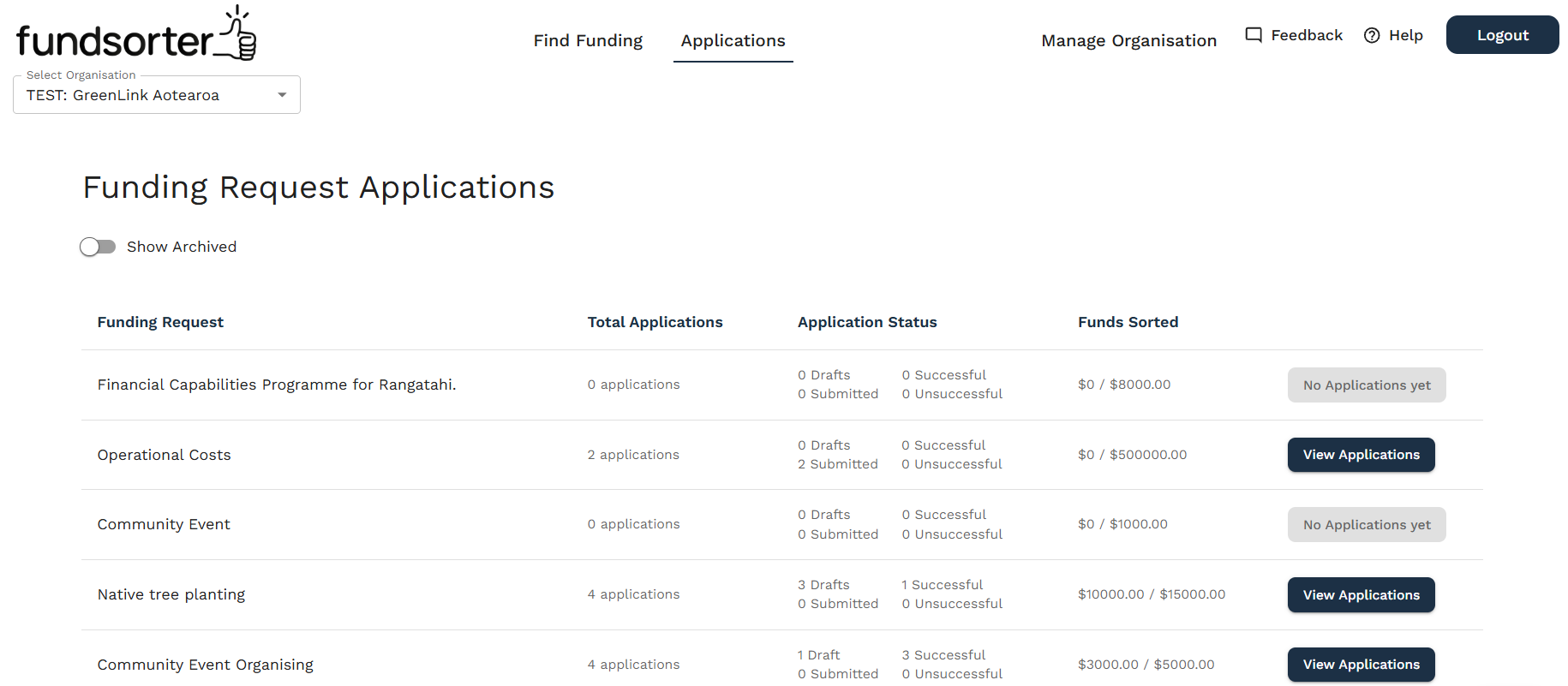
Here’s what each column shows:
- Funding request: The name of each funding request your organisation has created.
- Total Applications: The number of applications drafted for that request, regardless of status.
- Application Status: A breakdown of your applications into Draft, Submitted, Successful, and Unsuccessful. You can see what needs completing, what's with funders, and what's been decided.
- Funds Sorted: The funding secured from 'Successful' applications, tracked against the funding target from the funding request. A great way to track progress against funding goals.
- View Applications button: This is your gateway to the individual applications for the funding request.
- 'No Applications Yet': This will display when you haven't used Fundsorter's 'Draft My Application' feature for any Funding Request grant opportunities.
Step 2: Viewing and managing applications
Click 'View Applications' on the dashboard to see a detailed list of all applications drafted for that specific funding request. Keeping this information updated is key to tracking progress and benefiting from upcoming Fundsorter features. On this page you can:
- Search: Use the search bar to find a specific funder or fund name.
- Filter by Status: See a list of all applications in a specific stage (Draft, Submitted, Successful, Unsuccessful).
- Filter by Owner: View applications assigned to specific users within your organisation.
- Clear Filters: Click to clear your search and filters.
Each application is shown on its own row with the following details:
- Funder: This shows the Funder, the specific fund name, and when it was last updated. The Notes field is your team's internal shared memory. Use the pencil icon to add details, like a funder's contact person, a note from a phone call with the funder, or a reminder about a specific submission requirement. Click 'Save' to keep everyone in the loop.
- Owner: This shows which user in your organisation is responsible for the application. It defaults to the user who initially drafted the application, but can be edited so anyone can be assigned as the owner. It ensures clear accountability and makes it easy to see who is managing which relationship.
- Status: This is the most important field for tracking your grant funding pipeline. By keeping this updated (e.g., from 'Draft' to 'Submitted' to 'Successful'), you and your team can see what's in progress, what's with a funder, and what needs attention. This data is what powers your main Applications dashboard summary.
- Funds Sorted: This field is initially blank, but when an application is marked 'Successful' you'll be prompted to submit the dollar value of funding received.
- Reporting Date: This field is initially blank, but when an application is marked 'Successful' you'll be prompted to submit the accountability reporting due date.
- Actions: Click the pencil icon to 'Edit Details'.
Step 3: Updating Application Status
From the application list, click the 'Edit Details' pencil icon to update the Owner or Status. Keeping your application status up to date is key to tracking your progress.
Marking an Application as 'Successful'
Keeping this status current is the most important action you can take on this page. It's not just administrative, it’s what makes your dashboard powerful and meaningful.
- Click 'Edit Details' and change the Status to 'Successful'. A popup will appear asking for two fields:
- Amount Granted: Enter the dollar value you secured. This populates the 'Funds Sorted' column for this application and adds this total to your main dashboard. You can now track how much you've raised against your total goal for that Funding Request.
- Reporting Due Date: Enter the date your report is due to the funder (in DD/MM/YYYY format). This will populate the 'Reporting Date' column. When you save a Reporting Due Date, Fundsorter will automatically send you an email reminder about the upcoming deadline, helping you stay on top of your administrative requirements.
- Click the 'Mark As Successful' button to save this information.
Accountability Reporting due date reminders
By entering the Reporting Due Date, Fundsorter will now automatically send you an email reminder before the deadline. This helps you stay on top of administrative requirements, never missing an accountability reporting deadline.